 AgentEd
Installation help
Installing AgentEd
Current releases may trigger security warnings on Windows and macOS. This guide explains the expected messages, how to check your download, and when to stop.
Before you install
- Download only from the official links on agentedapp.com.
- On the GitHub releases page (opens in a new tab), check that the file name and version match the file you downloaded.
Optional: verify the download
If the release lists SHA-256 checksums, you can check that your download is exactly the file that was published. A matching checksum does not certify that the file is safe.
Find the checksum for the file you downloaded on the GitHub releases page (opens in a new tab), in the release notes or in the
.sha256file published next to it.Windows: in File Explorer, open the folder where you saved the installer, right-click an empty area and choose Open in Terminal. On Windows 10, hold Shift while right-clicking and choose Open PowerShell window here. Then run:
Get-FileHash .\AgentEd_*_x64-setup.exe -Algorithm SHA256
macOS: open Terminal and go to your Downloads folder, then run the check:
cd ~/Downloads
shasum -a 256 AgentEd_*.dmg
Compare the result with the published checksum. Every character must match. If it doesn’t, delete the file and download it again from the official link.
Windows
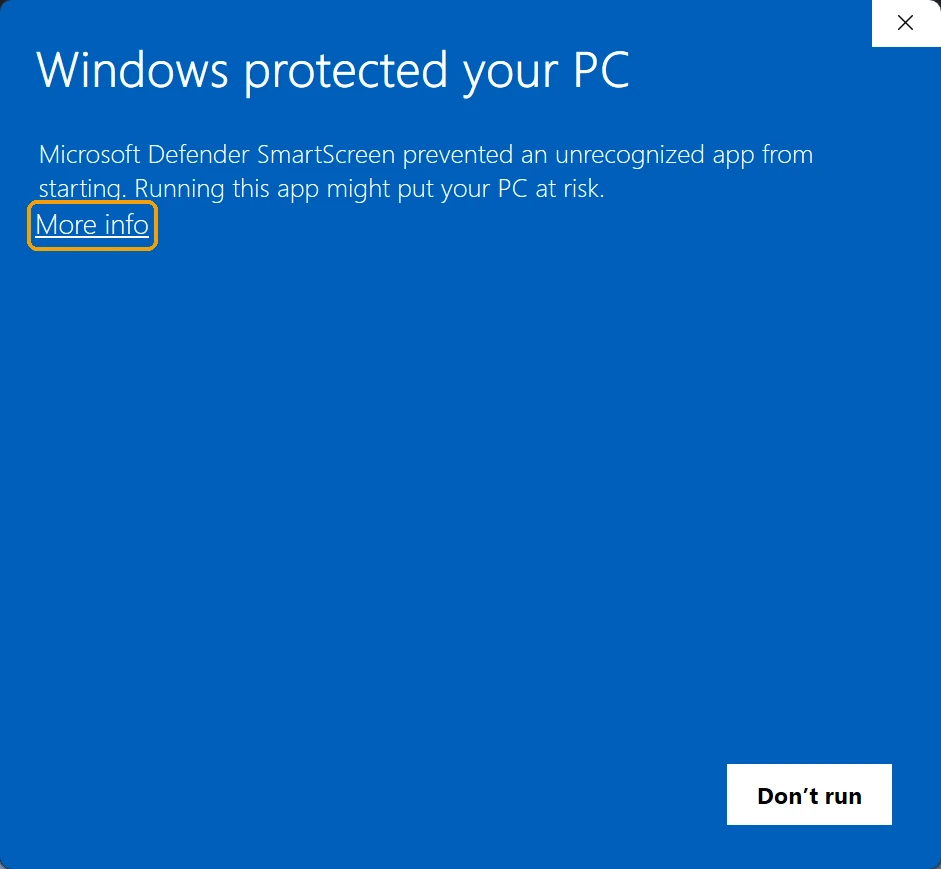
Current AgentEd releases are not digitally signed. Windows may display “Windows protected your PC” or identify the publisher as unknown. This is a reputation warning from Microsoft Defender SmartScreen: it is not a malware detection, but it is not proof that a file is safe either. It is also different from the User Account Control (UAC) prompt that asks whether an app may make changes to your device.
Open the installer you downloaded,
AgentEd_…_x64-setup.exe.If Windows shows Windows protected your PC, click More info.
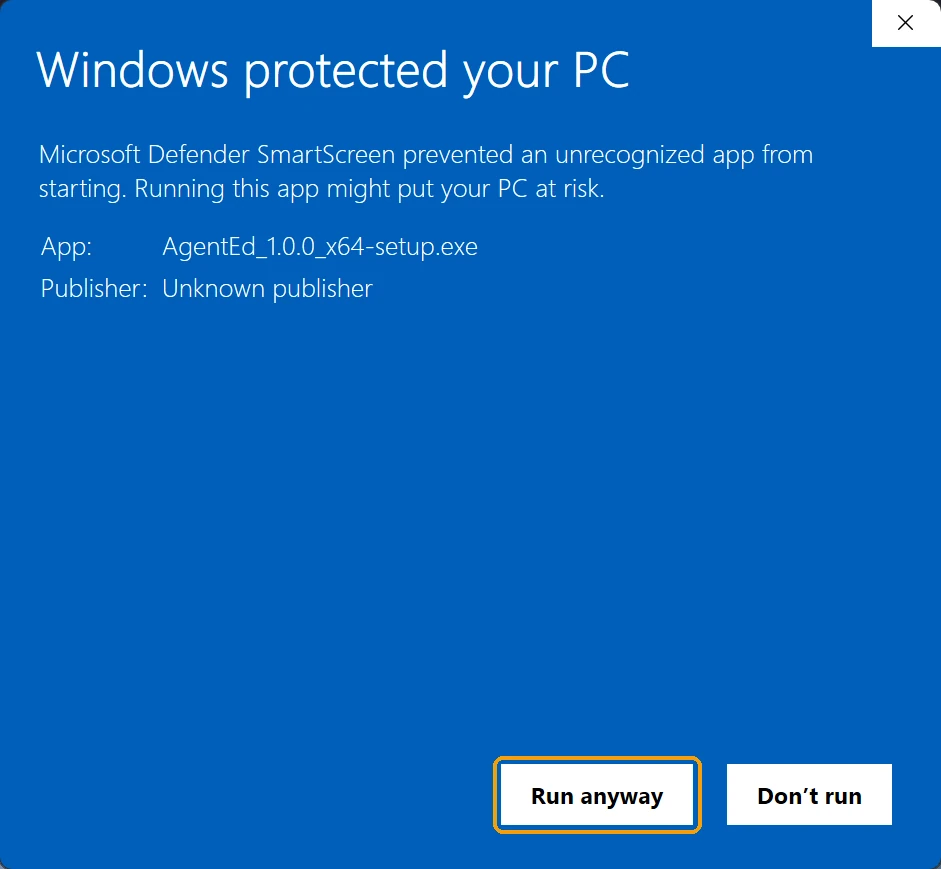
Check that the app is the AgentEd installer you downloaded, then click Run anyway. The publisher shows as Unknown publisher until releases are signed.
Follow the installer to finish. AgentEd then opens like any other app.
Good to know
- These steps apply only to the SmartScreen message shown above.
- If your antivirus identifies a specific threat, stop the installation and send the exact message and file version to contact@agentedapp.com.
- Do not disable your antivirus or SmartScreen.
- These options may be unavailable under some Windows configurations or organisational policies. On a computer managed by an organisation, contact its administrator.
macOS
The macOS build is for Macs with Apple Silicon. It is not notarized by Apple yet, so macOS blocks it the first time it opens. These steps were checked on macOS 26.6 and 27 and follow Apple’s instructions (opens in a new tab) for opening an app from an unknown developer.
Open the
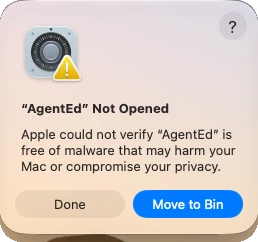
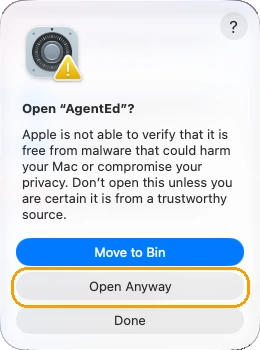
.dmgfile and drag AgentEd to Applications. Start it from Applications, not from the disk image.macOS says “AgentEd” Not Opened. Click Done, not Move to Bin (called Move to Trash on some Macs).
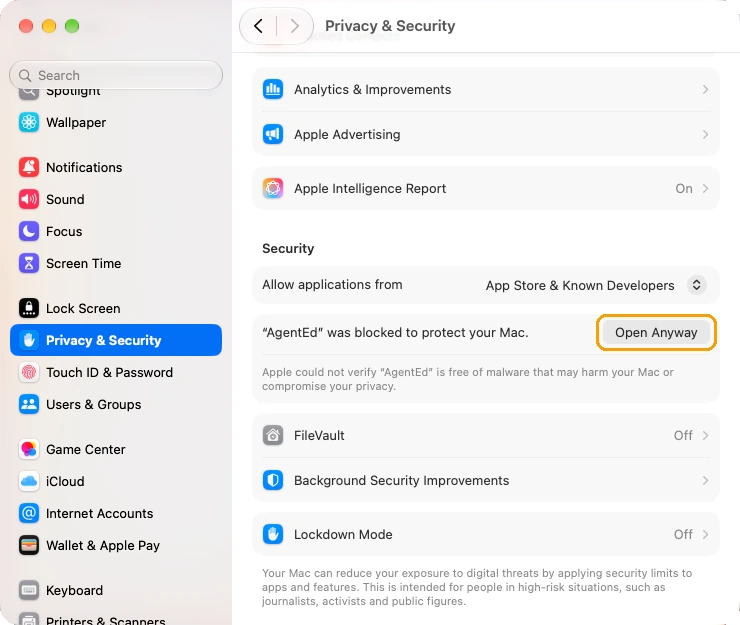
Open System Settings, then Privacy & Security, and scroll to Security. Next to the line saying AgentEd was blocked, click Open Anyway. The button is shown for about an hour after you tried to open the app.
In the dialog that follows, click Open Anyway. Be careful: the highlighted button is Move to Bin (or Move to Trash), which deletes the app.
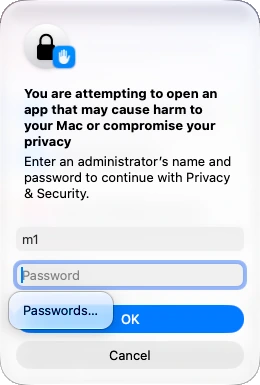
Enter your Mac administrator password and click OK. AgentEd opens, and from then on it opens without asking.
Good to know
- These steps apply only to the message shown above, saying that Apple could not verify AgentEd is free of malware.
- If macOS shows a different message, for example that the app will damage your computer, that it contains malware, or that the file is damaged, stop and do not open it. Send the exact message and file version to contact@agentedapp.com.
- Open Anyway creates a security exception for AgentEd on your Mac. It does not mean that Apple has checked the app.
- Any new installation asks again, a reinstall of the same build included, with the same steps.
Linux
An experimental Linux build, tested on Ubuntu 24.04 LTS (x64), is available on GitHub. Windows and macOS are the main supported platforms. See the release notes on GitHub (opens in a new tab) for the Linux package and how to install it.
Will future releases be signed?
Windows: future Windows releases are planned to be signed through SignPath, subject to the project’s acceptance into the program. Signing does not make SmartScreen warnings disappear immediately, because reputation builds up over time. Microsoft explains how (opens in a new tab).
macOS: signing the macOS build with an Apple Developer ID and notarizing it is a separate process. It has not been scheduled yet.
Signed releases will be clearly identified when available.
Ready to install?
Still stuck? Write to contact@agentedapp.com